You ask an image tool to change the background. The new background looks good, but the little character in the foreground now has different eyes. Fix those, and its scarf changes shape. For a creator, the frustrating part can be repairing details that were already right.
OpenAI released ChatGPT Images 2.5 on September 8, 2026, with claimed improvements to subject preservation, focused edits and consistency across successive changes. The useful question for your own work is whether a revision preserves the details you need. OpenAI’s release announcement
The exercise below gives you a small, repeatable way to check.
Choose one subject with details you can name
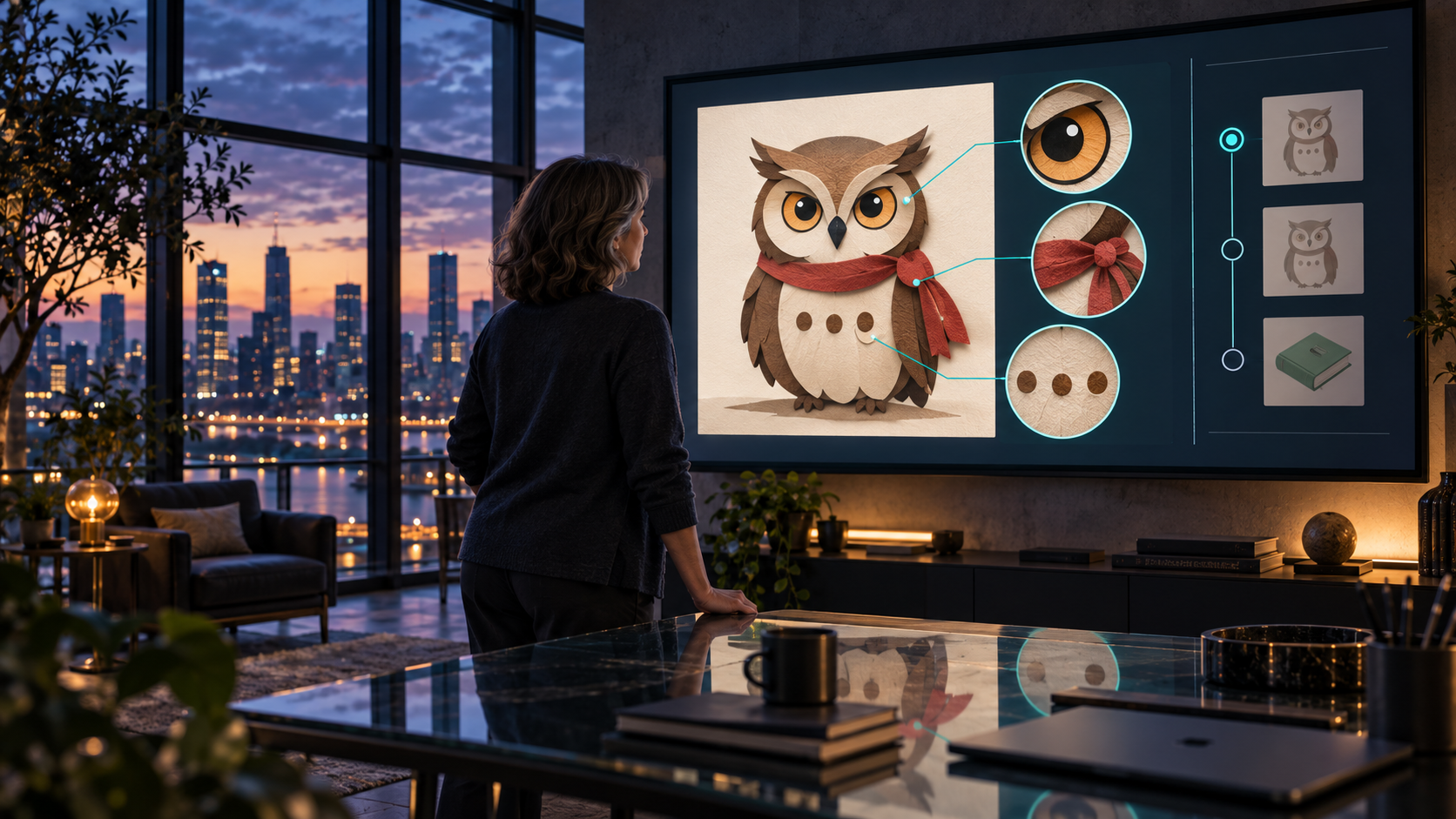
For this example, imagine a simple owl mascot for a book club: round amber eyes, three brown spots on its chest and a red scarf tied on its left side. A few distinctive details give you something concrete to compare after every edit.
Try this original prompt: Create a square illustration of a friendly owl for a book club. Give it round amber eyes, exactly three brown chest spots and a red scarf tied on its left side. Show the whole owl centered against a plain cream background. Use a simple paper-cut illustration style. Include no words, logos or other characters.
Keep the first acceptable version. Write down what you intend to preserve: eye color and shape, number of spots, scarf color, knot position, pose and illustration style. If the first picture doesn’t meet your brief, fix that before testing a sequence of edits. Otherwise you won’t know which request introduced the problem.
Change one thing, then compare
For the first edit, ask: Change only the cream background to a pale blue background. Preserve the same owl, its pose, amber eyes, three chest spots, red scarf and left-side knot. Add nothing else.
Compare the result with your saved original. Look at the owl before judging the background. Count the spots. Check whether the knot moved. View both images at a similar size so a smaller preview doesn’t hide differences. If an unwanted detail changed, keep that result as evidence and decide whether a correction is worth trying.
If the first edit is acceptable, make a second request: Keep the accepted owl and pale blue background exactly as they are. Add one small closed green book on the floor to the owl’s right, separated from its body. Don’t add lettering or change the owl’s details.
Your record now has three versions: original, background edit and added-book edit. Label what you asked for, what changed as intended and anything that changed unexpectedly. A result can look attractive and still fail your brief. This comparison is more useful than calling the whole sequence a success because the last picture looks polished.
Match the controls to your device
OpenAI’s current help page documents Sketch and image comments on mobile. For Sketch, type @ and choose Sketch, draw, confirm and add your instructions. Templates are reached through Images → Templates; they aren’t yet available in Work mode. These are interface features, separate from the model’s editing improvements. Images in ChatGPT help
For the owl exercise, a rough sketch could indicate where the owl and book should sit. Treat it as a layout request. A template could help you begin a poster, while an image comment could identify the detail you want revised. Use whichever control is actually present in your account; a launch announcement doesn’t prove every control is on every screen.
The same help page warns that selected areas aren’t exact boundaries and an edit can affect nearby content. Even a carefully placed selection deserves a full-image check afterward. Editing limitations
Treat the speed claim as a claim
OpenAI reports image-generation latency reductions of up to 50% compared with Images 2.0. That is a vendor comparison, not a promise that your next image will finish in half the time. The announcement doesn’t give enough benchmark conditions to reproduce that comparison here. Release details
For your own work, track how many tries lead to an acceptable image. One quick generation followed by several repairs may be less useful than a slower result you can use. Check the final file at the size you need, especially if it includes text or small details.
Use the result for the purpose it can support
The owl is practice artwork. It isn’t proof that an image tool will preserve a real person’s appearance or represent a product accurately. For a shop listing, compare the finished image with the actual item or download you’re selling. Don’t let an attractive revision change what a buyer is being shown.
Keep your original and each accepted revision. When you can describe both the change you want and the details that must survive, you have a clearer brief—and a practical way to decide when to stop editing.
A useful comparison record
- Save the original and each revision with a clear version name.
- Record the requested change and any unexpected differences.
- Inspect unchanged details before approving the new feature or background.
Interested in More Content Like This?
Subscribe to the Everyday AI Made Simple YouTube channel.
Get free AI prompts and a 30-day AI Confidence Checklist.
Get even more free content by signing up for the free resources hub.
Get serious about making AI your coworker: explore our prompt bundles and ready to install skills.