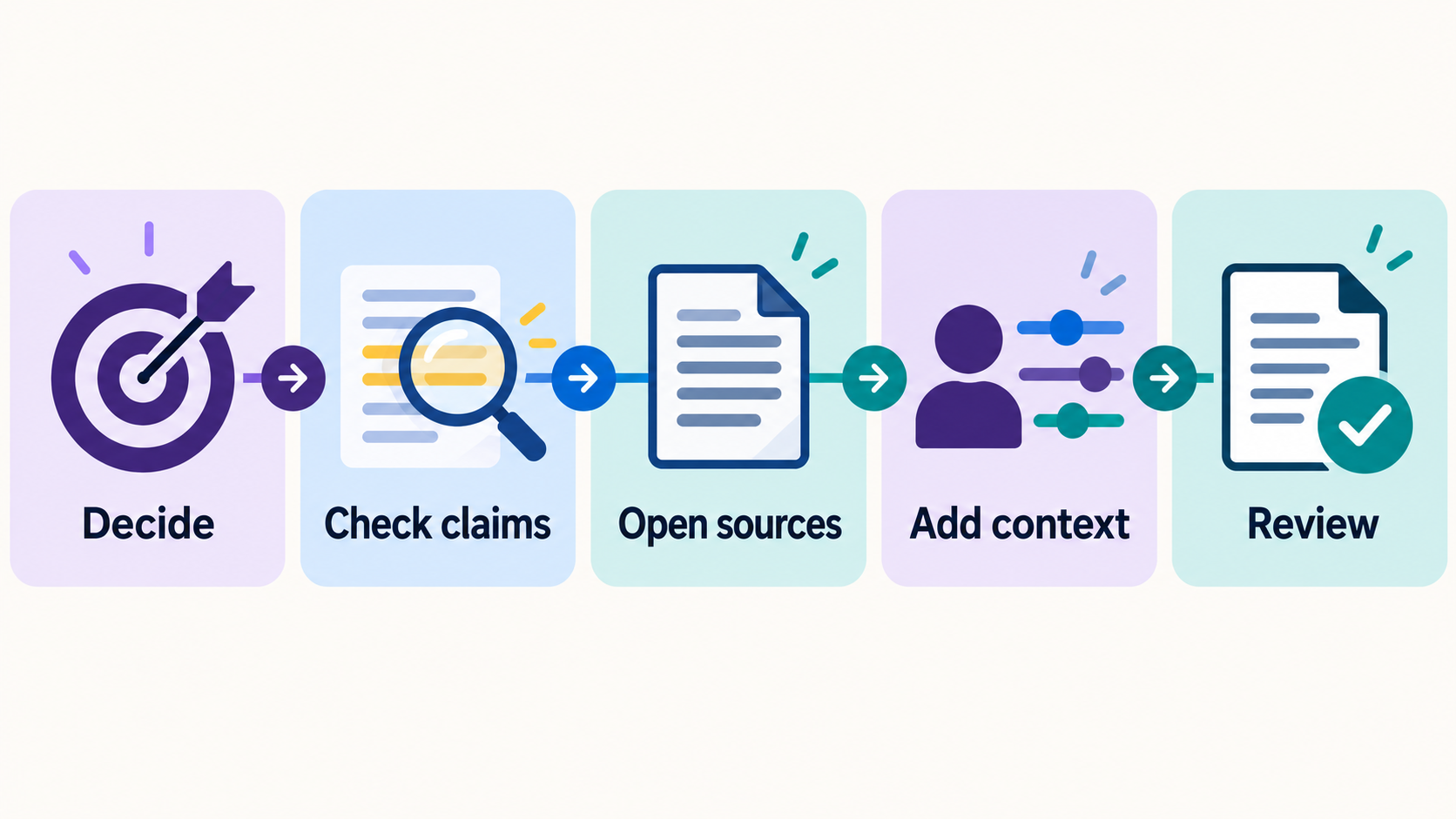
You’re halfway through a document when you reach the sentence you don’t know how to write. You could open another browser tab, find your AI chat, explain the situation and eventually return to the document. Or, if you have Google’s new Windows app, you can call up Gemini with a keyboard shortcut and ask your question there.
Google announced Gemini for Windows on September 10, 2026. The practical change is quicker access while you’re working. My view: an assistant becomes easier to use when asking a small question doesn’t feel like starting a separate project. That is an interpretation of the workflow, not evidence that every task will take less time. Google’s announcement
Here’s a fictional writing exercise you can try, with clear limits on what the app needs to know. This walkthrough follows Google’s documentation; it isn’t a report of a Windows recording or a timed test.
Start with the right app and account
This is a Google app you install. Calling it part of your working environment doesn’t mean Microsoft has built Gemini into Windows itself. Google’s help page lists Windows 10 or later, at least 8 GB of memory, 200 MB of installation space and an internet connection. You need a personal Google Account or a work or school account whose administrator has enabled Gemini. Windows setup help
On your PC, visit Google’s desktop download page, choose the Windows download, open GeminiSetup.exe and follow the installer. Open Gemini from Start and sign in. Alt + Space is the documented quick-access shortcut. On a work computer, use your organization’s approved installation process. Official download page
Check the download page for current country and language support before making this your routine. Google lists Windows support for both x64 and ARM64 PCs. Account access, age requirements and limits on particular features can differ; installing the app doesn’t include every paid feature. Desktop availability
Try a small task you can check yourself
Imagine you’re preparing a notice for a fictional community book swap. Your rough notes say: Saturday, 10 a.m. to noon, community room; bring up to five books; no entry fee. You need a friendly paragraph. The location’s street address isn’t decided, so it should remain missing.
With your document open, press Alt + Space. Give Gemini the facts you want it to use. Try this: Write a friendly, plain-English notice of no more than 70 words for a fictional community book swap. Use only these facts: Saturday; 10 a.m. to noon; community room; bring up to five books; no entry fee. Don’t invent a date, address, contact person or registration link. List missing details separately from the notice.
Read the result beside your notes. Did five books become five or more? Did no entry fee turn into free refreshments? Did a street address appear from nowhere? Those are the kinds of small changes that can make a polished draft wrong. Ask for a correction if needed, then copy only the notice into your document. Keep the missing-details list with your planning notes.
Being nearby doesn’t tell Gemini what you mean
A shortcut saves you from hunting for a chat window. You still need to supply the relevant information and decide whether the answer is useful. In this exercise, typing the few fictional facts is enough. There’s no need to connect an inbox or upload a whole folder.
Google’s desktop page labels several capabilities, including Speak to Window and local-folder context, as macOS features. Don’t assume that a demonstration of the Mac app proves the same screen access exists on Windows. This Windows walkthrough relies on information you deliberately provide. Platform-specific desktop features
Keep the request small: shorten a paragraph, suggest a clearer heading or turn your own notes into an outline. Afterward, return to the document and finish the job. A longer AI conversation isn’t automatically a better result.
Choose what you share before using real work
For a personal account, review Gemini Apps Activity and its Keep Activity setting. Google’s privacy guidance says some chats can be reviewed by people. Temporary chats and turning Keep Activity off change how conversations are used, but don’t mean instant deletion or zero retention. Google describes a 72-hour retention period for those chats. Work and school accounts can have different terms. Gemini privacy guidance
You can also review Connected Apps separately. For a first experiment, fictional notes let you learn the workflow without bringing someone else’s information into it. Before using client, employee or family details, check both your account’s settings and any rules that apply to the material.
Keep it if it helps you finish
Try the same kind of small writing task a few times. Notice whether the shortcut helps you stay with your document, whether you spend less effort finding the chat, and how much correction the result needs. You don’t need a stopwatch to recognize a workflow that feels easier, but don’t mistake that feeling for a measured productivity claim.
The useful habit is simple: bring one clear question, provide the few facts it needs, check the answer and return to what you were doing. That’s a manageable way to make AI part of an ordinary work session.
Before you use the draft
- Compare names, numbers and timing with your original notes.
- Keep missing details out of finished copy until you can supply them.
- Use the right account for your work and check what you’re sharing.