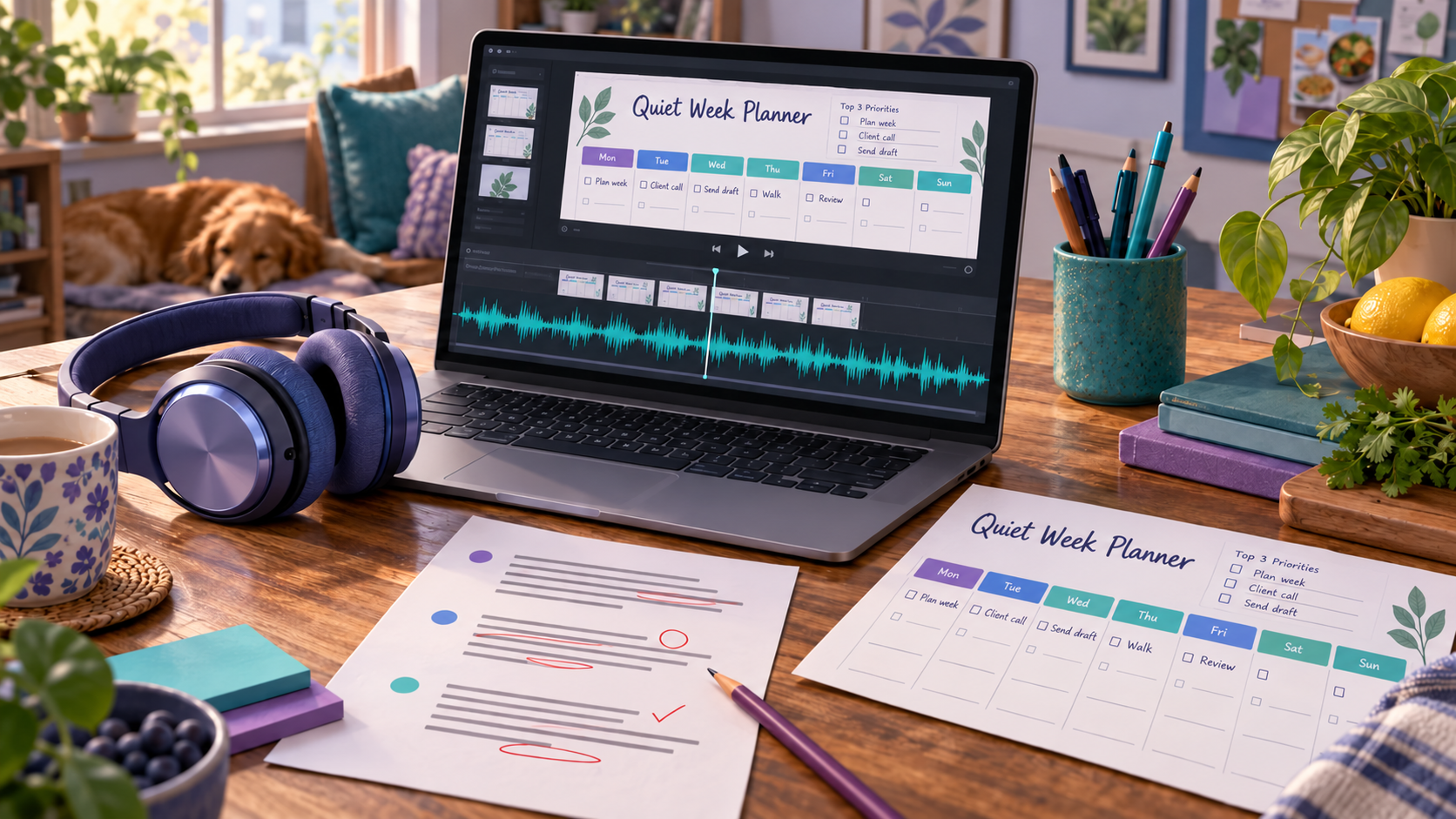
When a product video says “choose your three priorities,” the viewer needs to see where to put them. A pleasant voice helps, but the explanation works only if someone can follow the words on screen.
For a printable, planner, or small-business service, start with one short task you can show. This walkthrough uses a 49-word planner script that became a 19-second ElevenLabs voiceover. The first take was kept because the product name, instructions, and pauses were clear. You can use the same listening check to decide whether your own recording needs another try.
Write the words you can show
Aim for 40 to 60 words for your first sample. Name the problem, explain one starting task, and give the viewer a reasonable next step. Trying to describe every feature makes it harder to match the narration to the screen.
The recorded demonstration used this example for the Quiet Week Planner:
Busy weeks get easier when every task has a clear place. Open the Quiet Week Planner, choose your three priorities, then add appointments and smaller tasks around them. Start with Monday, not the whole month. Download the planner, print one page, and plan the week in ten calm minutes.
The script gives you something specific to show: the priorities area, the weekly spaces, and Monday. Before generating your own audio, read each instruction while looking at your product. If you cannot point to the relevant place, make the instruction more specific or choose a different view.
Keep customer names, orders, addresses, and account information out of the script and demonstration.
Check the account, then generate
Before making audio for a business, check your plan, remaining credits, permission to use the voice, and the selected feature’s commercial-use terms. ElevenLabs says its free plan does not include a commercial license. Eligible output generated during a paid subscription can be used commercially when you hold the necessary rights and meet its terms and applicable law. Service-specific conditions apply, and Beta Services are excluded from commercial use. Paying for an account does not remove those conditions. ElevenLabs commercial-use rules.
In the browser, open Text to Speech, paste your script, and select an available voice you are authorized to use. Adjust settings if needed, then choose the generation button. ElevenLabs’ guide identifies voice and model choice as larger influences on the result than smaller setting adjustments. A model is the speech system that produces the audio. Text to Speech guide.
For the recorded sample, the signed-in account was on the Creator plan. It used Roger with Eleven v4, speed 1.0, stability 0.5, and similarity 0.75. The generation cost 285 credits, and the selected MP3 lasted 19.069 seconds. Check the displayed charge and your account before generating; ElevenLabs’ pricing page describes credit use and plan allowances.
Decide whether to keep the first take
Listen with the written script in front of you. Check the product name and any numbers or dates. Notice unexpected emphasis, awkward pauses, or an instruction spoken too quickly to follow. Also listen to the closing request: does it sound more demanding than you intended?
The Quiet Week Planner sample passed those checks on its first generation. The product name was understandable, “three priorities” was clear, and the pause after “whole month” worked. The final sentence gave the viewer time to follow the instruction. No script correction or second take was needed.
For your own sample, write down the exact problem before changing anything. If a name sounds wrong, check its spelling. If an instruction rushes past, try splitting the sentence or adjusting the punctuation. Change one thing at a time, then listen to whether it helped.
Keep a clear first take. Regenerating without a specific problem gives you another file to compare without a clear reason to prefer it.
Download it and check the whole sequence
ElevenLabs documents immediate downloads after generation and later downloads from history. History includes MP3 and WAV options, with additional formats under Advanced. Save the chosen audio with a name such as quiet-week-planner-voiceover-v1.mp3, and keep the script beside it. Download instructions.
Place the audio under your product demonstration in your video editor. Watch with sound and compare each spoken instruction with the picture:
| When the voice says… | Show… |
|---|---|
| “choose your three priorities” | The planner’s priorities area |
| “add appointments and smaller tasks” | The weekly spaces |
| “Start with Monday” | Monday’s space |
If the narration reaches Monday while the screen still shows priorities, adjust the sequence so the viewer can follow along. Listen to the complete edit again after making changes.
Check that text remains readable and that no account identity, credit balance, billing details, unrelated history, or customer data appears in the recording. Cropping the browser view can help, but review every part of the finished sequence.
Before sharing, play the video once more and follow its instructions yourself. If the next action is clear at the moment it is spoken, you have a useful explanation to show your customer.
Sources used for this article
- ElevenLabs Text to Speech product guide
- ElevenLabs publishing and commercial-use rules
- ElevenLabs pricing
Product controls, credit charges, and terms can change. Check your account and the official terms before generating business audio.